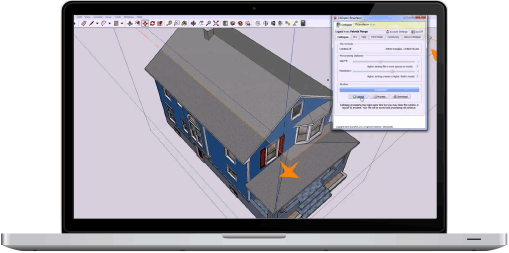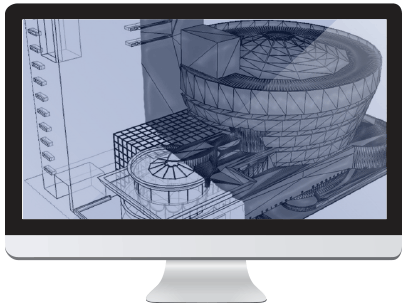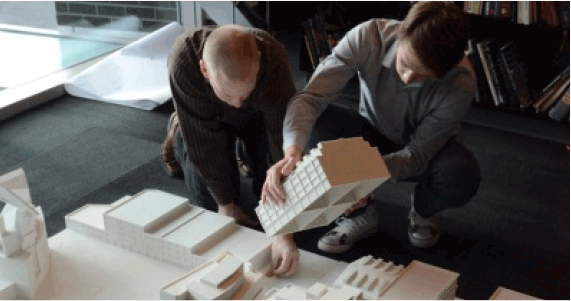


The Resurfacer is CADspan's most important and powerful tool. Clicking the CADspan resurfacer button will open the resurfacing application in Google SketchUp's built-in web browser. Register or log in to access the application.

The main CADspan tab will give the user control over the resurfacer. Click the Upload button to bring your current selection into the resurfacer. If nothing is selected, the entire model will be used. Please note that this process can take some time, depending upon the complexity and size of the Google SketchUp model. You can track the progress of the upload in the bottom-left corner of the Google SketchUp window. Please note that there is a 7500 polygon limit applies to Free users because processing time costs us money.

Check the Gap Fill and Resolution settings, and adjust if necessary. If you are unsure about what settings to use, start with the defaults. A file can always be re-processed with different settings later. Click the '?' help buttons to learn more about what these settings do, and see the tutorial video at the bottom of this page.

Begin resurfacing the model by clicking the Process button. The CADspan engine will now resurface the file. This can take anywhere from 10 minutes to an hour, depending upon the complexity of the model. Feel free to close the application window while processing. To get it back, just click the Resuface button in the tool bar.

Once processing is complete, a file will be available for download. Click the download button and save the zip file to your computer. Un-zip the file, then check it by importing back into Google SketchUp. If everything looks OK, the file is ready to print. If you are not satisfied with the resurfaced file, try processing it again with different settings.

GAP FILL: Higher setting fills in more spaces on model.
When the input geometry is resurfaced, the program tires to determine what is "inside" and what is "outside". When it cannot, it will try to fill the "gap" to create a watertight mesh. The "gap fill" setting controls how aggressively it fills these gaps. Higher settings are useful on models with large holes. If you get "webbing", or areas of blobby mesh (particularly in recesses) and the underlying shape is good, then your gap fill is too high.

RESOLUTION: Higher setting creates a higher fidelity model.
Creating a new mesh is like scanning a flat picture. Higher resolutions mean better looking output but a bigger file. Depending on what 3d printer the model will be printed on, a higher resolution may not make a visible difference once the model is printed. Higher resolutions also mean that you are reproducing the errors in your input. If you have a lot of holes, it will be hard to get a good mesh with a high resolution. If you increase resolution you may have to increase gap fill.


Bookmark and Share Copyright © 2008 LGM - www.lgmmodel.com - 800.448.8808 - 500 Pine St. Minturn, CO 81645 - All Inquiries: info@cadspan.com