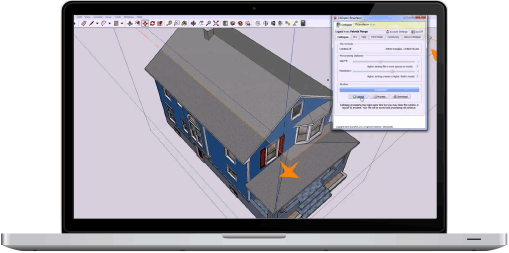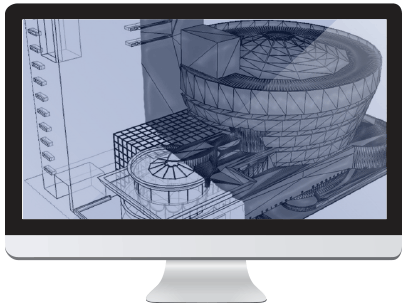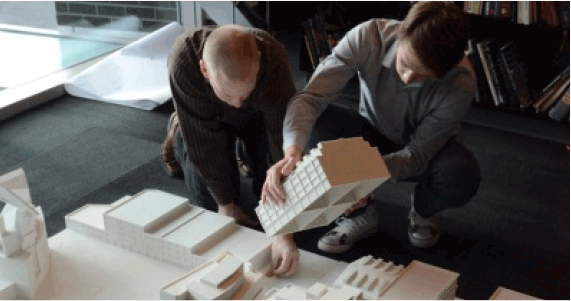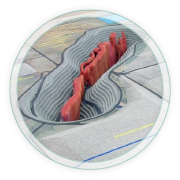

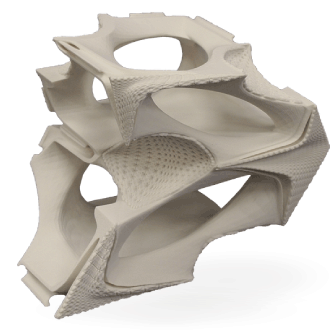
The Resurfacer is CADspan Pro's most important and powerful tool. Rather than assume that the input data has been created with a solid modeling program and the file might need repair, repositioning, slicing or scaling, CADspan simply takes the approach that what you see on your screen looks like a model that should be printable. The CADspan engine uses your geometry to perform a virtual 'shrink-wrap' and outputs an entirely new STL file that describes the exterior of your CAD file. This new STL file is a single, solid object, ready to 3D print.

There are three settings for the resurfacer. These settings allow control over the resurfacing process; different combinations will produce different output. If you are unsure of what settings to use, start with the defaults; a file can always be resurfaced again later with different settings if the default output is not satisfactory.

Gap Fill

Higher setting fills in more spaces on model. When the input geometry is resurfaced, the program tires to figure out what is "inside" and what is "outside". When it can't, it will try to fill the "gap" to create a watertight mesh. The gap fill setting controls how aggressively it fills these gaps. Higher settings are useful on models with large holes. If you get "webbing", or areas of blobby mesh, particularly in recesses, and the underlying shape is good, then your gap fill is too high.

Resolution

Higher setting creates a higher fidelity model. Creating a new mesh is like scanning a flat picture. Higher resolutions mean better looking output, but a larger file. Depending on what 3d printer the model will be printed on, a higher resolution may not be visible. Higher resolutions also mean that you are reproducing the errors in your input, more accurately representing the holes imported in to CADSpan. If you have a lot of holes, it will be hard to get a good mesh with a high setting. If you increase resolution you may have to increase gap fill.

Decimation

After resurfacing, the shrinkwrapped file is extremely triangulated and consists of many faces. Decimation reduces the number of triangles in the object, thus reducing file size. The decimation setting allows the user to control how aggressively CADspan will remove extra triangles. A lower decimation setting will remove fewer triangles. This will speed up the process, but the output file will be larger. A higher decimation setting will remove more triangles from the object, taking a bit longer but yeilding a smaller output file. If you find that smooth curves are being either eliminated or are too faceted, you can reduce the decimation setting.


Bookmark and Share Copyright © 2008 LGM - www.lgmmodel.com - 800.448.8808 - 500 Pine St. Minturn, CO 81645 - All Inquiries: info@cadspan.com